Introduction
I expected Claude Code to be another AI coding assistant with a nicer interface.
You know the type: autocomplete with opinions, a chat window that occasionally suggests a useful function, and a great deal of confidence around edge cases it has not actually tested.
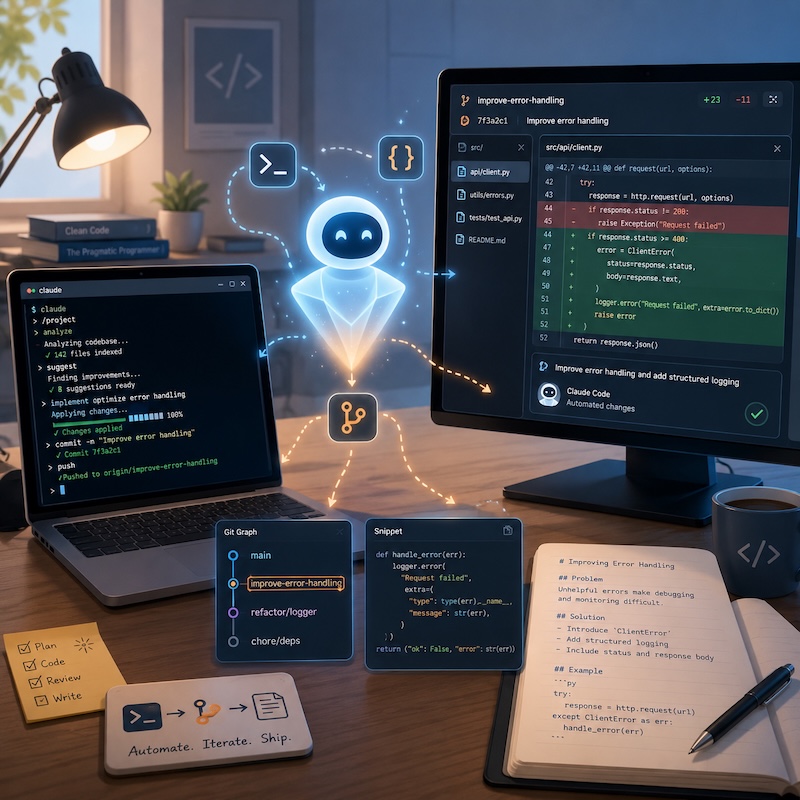
Claude Code feels different because it does not stay politely outside the project. It enters the repo. It reads files, edits code, runs commands, checks errors, creates commits, and shows you the diff. Used without caution, that sounds alarming. Used carefully, it has become one of the most useful workflow tools I have added this year.
The interesting part is not that Claude can write code — we already knew models could do that. The interesting part is where it sits: inside the terminal, the editor, the Desktop app, the git history, and all the small maintenance tasks that normally eat an afternoon.
This post is a practical field note: where I reach for Claude Code first, where I deliberately slow it down, and how I use it both as a developer and as someone maintaining a technical blog.
The Shift: From Prompting to Delegating
The biggest change for me was not learning a new command. It was changing the size of the task I was willing to hand over.
With autocomplete, I ask for a function. With a chat interface, I ask for an explanation. With Claude Code, I can hand over a workflow: “find the broken tests, fix the root cause, update the docs, and show me the diff.”
That does not mean I stop reviewing — quite the opposite. The review becomes more important. But I spend far less time shuffling between files, copying error messages, pasting logs, and re-explaining project context from scratch every session.
What is Claude Code? An Agentic AI Coding Assistant
Claude Code is an agentic coding assistant. You give it a task in plain English, it plans an approach, executes it across multiple files and tools, and verifies the result. It does not just suggest — it acts.
It runs on five surfaces: the Terminal CLI, VS Code, JetBrains, the Claude Desktop app, and the web. Your CLAUDE.md instructions, MCP tool connections, hooks, and settings are shared across all of them. Start a session in the terminal, switch to the Desktop app to review a diff visually, and everything is still there. For anyone who moves between environments — a workstation, a laptop, a CI pipeline — this matters in practice, not just on paper.
Getting Started
Install the CLI with one command:
# macOS / Linux / WSL
curl -fsSL https://claude.ai/install.sh | bash
# Windows PowerShell
irm https://claude.ai/install.ps1 | iex
Then navigate to any project and start a session:
cd my-project
claude
You will be prompted to log in on the first run. After that, it opens an interactive session — type your task in plain English, Claude works, and the output appears in the chat. That is genuinely all the setup required.
For the Desktop app, download it from claude.ai/download, sign in, and click the Code tab. Same underlying engine, different surface.
For Developers and Technical Practitioners
The CLI is where I reach first for anything code-related, partly because it fits naturally into the tools I already use, and partly because piping data into Claude makes it dramatically more precise than a generic prompt.
Fixing Bugs
claude "I'm getting a KeyError: 'user_id' in the /profile route of app.py.
Find the root cause and fix it."
The key is to describe the symptom rather than guess the cause. Claude traces through the route, finds where user_id might be absent from the request context or session, adds the appropriate guard or error handler, and shows you what changed. Giving it the error message and file path instead of “fix the bug” is worth the extra few seconds of typing.
Writing and Running Tests
claude "write unit tests for the auth module, run them with pytest, and fix any failures"
It generates the tests, runs pytest, reads the full traceback from any failures, and iterates until everything passes — all without another command from me. The agentic part is what makes this genuinely different from autocomplete: if a test fails because a fixture is missing, Claude adds the fixture; if it fails because of a missing import or a mismatched type annotation, it corrects that too. I do not have to re-enter the loop until it tells me it is done. This is the workflow I reach for most often on existing code that has no test coverage.
Refactoring
claude "refactor the payments module to use async/await throughout and
eliminate any remaining blocking calls"
Claude touches every file in the module, preserves the logic, and produces a diff. The important thing here is to review that diff before committing — not because Claude tends to make logic errors, but because automated refactors sometimes reveal that the original structure was hiding complexity worth understanding.
Git and Pull Requests
claude "commit my staged changes with a clear, conventional commit message"
claude "open a pull request for this branch with a summary of what changed and why"
I use these for feature branches where I want a decent commit message without stopping to think of one, and for PRs where the summary should reflect what actually changed rather than what I intended to change when I started.
Security Review via Pipe
git diff main --name-only | claude -p "review these changed files for security issues"
The -p flag runs Claude non-interactively: it reads the prompt, does the work, and exits. Piping git output, log files, or JSON into Claude via -p is one of the most useful patterns I have found. It follows the Unix philosophy — Claude becomes one more composable tool in a pipeline, rather than a separate thing to context-switch into.
# Analyse a log file for anomalies
tail -200 app.log | claude -p "identify any error patterns or anomalies"
# Bulk code review across changed files
git diff main --name-only | claude -p "check these files for common code smells and inconsistencies"
Visual Diff Review in Desktop
When a change touches many files, I switch to the Desktop app for review. After Claude finishes, a +12 -3 indicator appears next to each changed file. Clicking it opens the diff viewer where I can comment on individual lines — “this should be a dataclass, not a plain dict” — and submit all comments at once with Cmd+Enter. Claude reads them and adjusts. This is more ergonomic than reviewing a terminal diff when the change is non-trivial.
Parallel Sessions
Each Desktop session gets its own Git worktree automatically, so I can work on a bug fix in one tab and a feature in another without the sessions stepping on each other. Running Cmd+N opens a new session. I find this most useful when I want to experiment with an approach without touching the main working branch.
CLAUDE.md: Standing Instructions
Drop a CLAUDE.md in your project root and Claude reads it at the start of every session. I put everything in here that I would otherwise repeat across prompts:
# Project
## Tech stack
- FastAPI, Python 3.12, PostgreSQL
- Tests: pytest with pytest-asyncio
- Containerised with Docker Compose
## Conventions
- Type-annotate all function signatures
- Use Pydantic models for request and response validation
- Run `pytest` and `docker compose build` before committing
## Off-limits
- /legacy — this folder is frozen, no edits
The payoff is immediate: Claude applies these constraints automatically without being told. If you find yourself typing the same context at the start of every session, put it in CLAUDE.md and reclaim those keystrokes.
Plan Mode Before Touching Production
Before any task that involves database migrations, authentication, or billing, I start in Plan mode. Claude maps out exactly what it intends to do — which files it will touch, which commands it will run, in what order — and I read it before anything executes. Then I switch to Auto accept edits to run it. The plan only takes a minute to read and has saved me from a few sequences I would not have approved if I had seen them framed as individual steps.
For Content Writers and Bloggers
I run this blog on Jekyll, which means I am also occasionally a developer by necessity — theme quirks, broken shortcodes, Ruby version drama, the usual. Claude Code handles the technical parts so I can spend more time writing. But it also has some genuinely useful tricks for writing workflows themselves.
Updating Code Examples Across Posts
When a library updates and breaks my examples, I used to update them manually, one post at a time. Now:
claude -p "find all markdown files in /posts that contain Python 2 print
statements and update the code blocks to Python 3 syntax"
Claude scans every post, identifies the outdated blocks, and updates them in place. The -p flag means it runs, finishes, and exits — no interactive session needed.
Scanning for Dead Links
claude "scan all .md files in the /content directory for dead internal links
and either fix or flag them with a comment"
I run this before any major site restructure. Claude checks the links against the actual file structure, fixes ones where the target has simply moved, and leaves a <!-- broken link: original-path --> comment on anything it cannot resolve confidently.
Generating a Changelog from Git History
git log v1.0.0..HEAD --oneline | claude -p "turn this into a readable
changelog grouped by feature, fix, and breaking change"
This one I use when releasing updates to side projects. Piping the raw git log into Claude and asking for a structured changelog is faster than writing it by hand and more honest than writing it from memory.
Keeping Documentation in Sync with Code
After a refactor, documentation tends to drift. I run:
claude "my API endpoints changed — update /docs/api-reference.md to match
what is actually in /src/routes/, then show me the diff"
Claude reads both the routes and the reference doc, identifies the gaps, updates the doc, and shows what changed. The “then show me the diff” at the end is worth adding to any edit task — it forces Claude to surface what it did rather than just report success.
Writing Tutorials with Working Code Examples
When writing a tutorial that includes a working project, I start a Desktop session on the blog repo and ask:
“I’m writing a tutorial on building a Python microservice with FastAPI and Docker. Create a working example project in /examples/fastapi-service — a working Dockerfile, a basic route, and a pytest test suite — and make sure each step of the tutorial corresponds to a real, runnable state of the code.”
Claude builds the example project incrementally, ensuring each stage is actually runnable before I document it. I write the prose alongside, and I can ask Claude to verify the container still builds and the tests still pass at any point. This catches the classic tutorial pitfall where the final code works but the intermediate steps do not.
Auditing Old Posts for Broken Code
This is where Claude Code becomes less of a coding tool and more of a blog maintenance assistant.
Technical posts age badly. A snippet that worked in Python 3.9 may silently fail in 3.12, or a library may have changed its API since the post was published. Running a periodic audit keeps things honest:
claude -p "scan all markdown files in /_posts for Python code blocks.
For each one, check whether the syntax is still valid and flag any
deprecated function calls or import paths."
I run a version of this before major Python version changes. Claude identifies the problematic snippets, notes which posts they are in, and suggests corrected versions. I review before touching anything.
Translating Content
claude -p "translate the new strings in /locales/en.json into French and
Spanish and add them to the corresponding locale files"
For an internationalised site, this is the sort of maintenance task that would otherwise sit in a backlog indefinitely. Running it non-interactively via -p makes it a one-liner in a deployment script.
Side Chats for Quick Questions
In Desktop, pressing Cmd+; opens a side chat — a separate conversation that does not pollute the main session history. I use this for quick questions mid-task: “what does this regex actually match?”, “is there a more idiomatic way to write this?”, “did Jekyll ever support this shortcode syntax?”. Close the side chat and the main session is exactly where I left it.
CLAUDE.md for a Static Site
The same CLAUDE.md trick works for a blog repo:
# My Blog
## Stack
- Jekyll + custom theme
- Posts in /_posts as .md files
- Shortcodes live in /_includes
## Writing style
- British English throughout
- Use H2 and H3 headings only (not H1 in post body)
- Code blocks always include a language tag
- Internal links use relative paths
## Build commands
- `bundle exec jekyll serve` for local preview
- `bundle exec jekyll build` for production
Claude reads this and follows the conventions without being reminded. This is especially useful if you collaborate with anyone else on the repo — they get the same standing instructions automatically.
CLI or Desktop?
They are complementary, not competing. I run both simultaneously on the same project.
| You want to… | Reach for |
|---|---|
| Review a diff visually and comment on lines | Desktop |
| Run parallel tasks without branch conflicts | Desktop |
| Watch your app as Claude edits it | Desktop |
| Monitor CI and auto-merge a PR | Desktop |
| Pipe logs or git output into Claude | CLI |
| Run Claude in CI/CD | CLI |
| Automate across many files in a script | CLI |
| Work from a Linux server | CLI |
| Use Bedrock, Vertex AI, or Foundry as the backend | CLI |
Move between them freely. Run /desktop in the terminal to hand off the current CLI session to the Desktop app. Your CLAUDE.md, MCP servers, hooks, and settings are available on both surfaces.
A Few Practical Things Worth Knowing
Be specific. “Fix the bug” gives Claude less to work with than “the user session expires after 10 minutes instead of 24 hours — trace through the auth flow and find where the expiry is being set incorrectly.” Specificity reduces back-and-forth.
Use Plan mode on anything irreversible. Database migrations, auth changes, bulk file operations — see the plan before execution. It takes one minute and occasionally saves considerably more than that.
Put repetitive context in CLAUDE.md. If you have typed the same project conventions more than twice in a session, they belong in CLAUDE.md, not in your prompts.
Chain the CLI with existing tools. Claude Code is not a replacement for your toolchain — it is a layer on top of it. grep, find, git log, jq all become useful inputs via pipe.
Start on something low-stakes. The first time you use Claude Code on a real codebase, give it a contained task — writing tests for existing code, updating a README, fixing lint errors. Watch how it reasons and where it asks for clarification. Once you have a sense of that, you will know how much autonomy to give it.
Where I Still Keep Claude Code on a Short Leash
Not everything should be delegated freely. I use Plan mode and review carefully — or skip Claude Code entirely — for:
- Database migrations
- Authentication and permission logic
- Billing and payment flows
- Production deployment scripts
- Bulk edits across many posts at once
- Anything involving secrets, tokens, or credentials
The first time I gave Claude Code too broad a refactor task, it produced a technically reasonable diff that was larger and more opinionated than I wanted. Nothing disastrous happened, but it was a useful reminder that “agentic” does not mean “reads my mind.” Since then, Plan mode is a non-negotiable starting point for anything I cannot easily undo.
Being the adult in the room is still part of the workflow. Claude handles the glue work; I handle the judgement.
If you have a colleague or reader who wants to try all of this before committing to a subscription, there is a low-cost way to give them access.
Guest Passes
If you are on a Pro or Max plan, you can send a guest pass — a seven-day trial of full Pro access, including Claude Code and Cowork. Check your available passes with /passes in Claude Code, or in Settings → Claude Code in the Desktop app. Recipients need to enter payment details to activate, but are not charged unless they keep the subscription after the trial.
Disclosure: the link below is a referral link. If you use it and later convert to a paid plan, I may receive usage credits. I have included it because it is the easiest way to try Claude Code at no cost — not to pad the post.
Try it free: seven days of full Pro access — Claude Code, Cowork, everything: claude.ai/referral/xERIYlTUjA
Start with One Small Task
If you have not tried it yet, begin with something contained and easily reversible — writing tests for an existing module, updating a README, or asking Claude to explain a confusing part of your repo. Watch how it reasons through the task and where it asks for clarification. Once you have a feel for that, you will know how much to trust it — and when to reach for Plan mode first.
The install takes thirty seconds:
curl -fsSL https://claude.ai/install.sh | bash
Then cd into any project and run claude. For the Desktop app, download from claude.ai/download and open the Code tab. Full documentation is at code.claude.com.
Enjoyed this? Get more like it.
Weekly notes on AI tools, Python, and what I'm actually building — plus a free copy of Fantastic AI: The 2026 Toolkit.