AI Browser Extensions: What They Are and Why They Matter
I copy-pasted text between a browser tab and a separate AI chat window for far too long before I gave in and installed a proper AI browser extension. Alt-tabbing between a PDF and a chat window, retyping the same three sentences of context each time, is not a workflow — it’s a small, self-inflicted admin job. Now the AI sits in a sidebar and already knows what I’m looking at — no tab-switching, no re-explaining.
This post is for anyone who still works that way, and wants to know what an AI browser extension actually buys you. The field has grown crowded fast — Anthropic and OpenAI ship their own, Google has folded Gemini straight into Chrome, and a handful of multi-model aggregators (HARPA AI, Monica, Merlin) will happily give you several different AI brains behind one sidebar. I cover six of them below, plus six concrete use cases and the security trade-offs worth knowing about.
AI Browser Extension Definition and Core Value: Context Awareness
An AI browser extension is a browser add-on that connects a large-language-model assistant directly to the tab you have open, rather than requiring you to paste content into a separate chat interface. The value of these extensions is context awareness. When you use a plain web interface like Claude.ai or ChatGPT, the model only knows what you explicitly paste in. A browser extension can instead read the DOM (Document Object Model) of the tab you currently have open, so it already has the page in front of it.
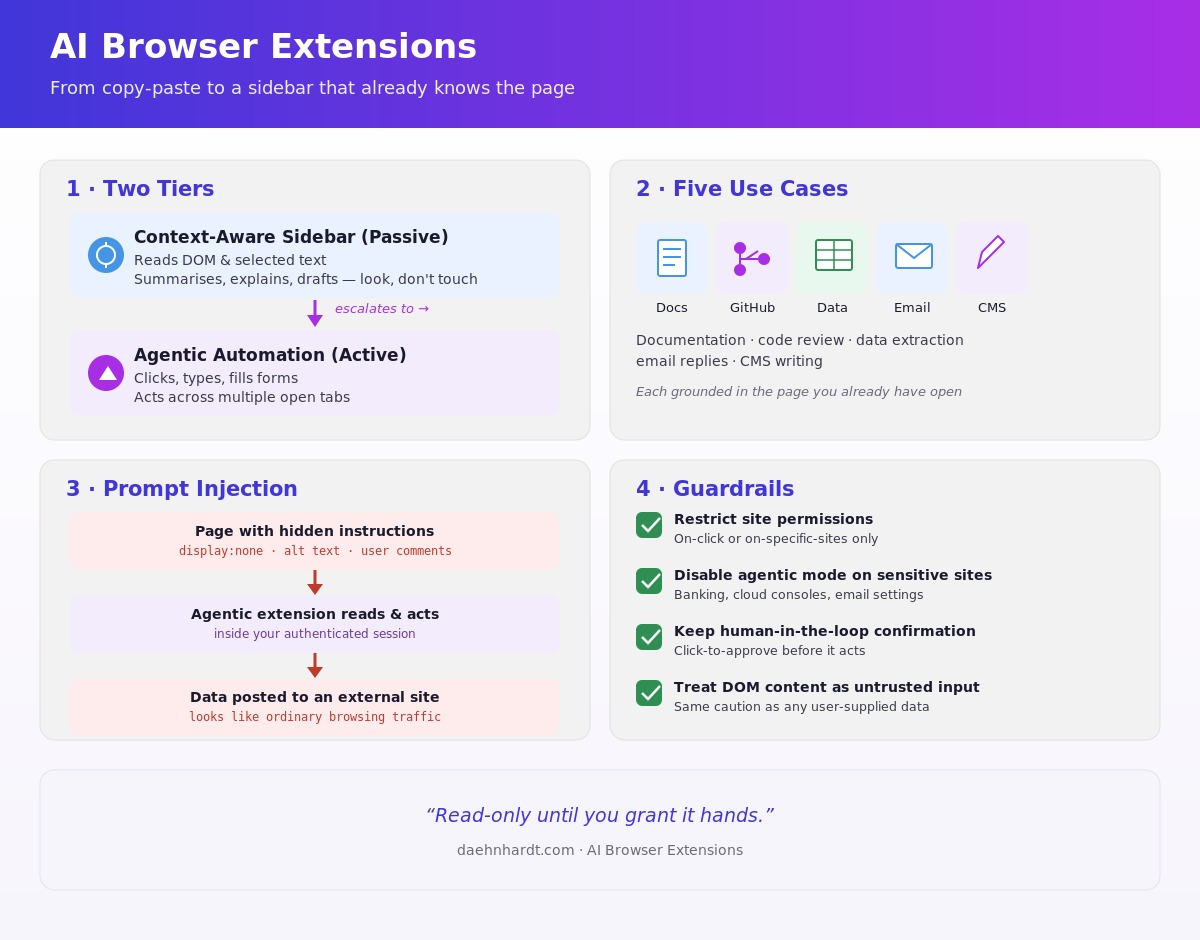
In practice, these extensions fall into two distinct tiers, and the tier matters a great deal once you get to the security section below:
- Context-aware sidebars (passive): read the DOM or your selected text, then summarise, parse, or generate text based on it. This is what the standard ChatGPT extension and the core Claude sidebar do — look, but don’t touch.
- Agentic automation (active): goes further and performs actions on the page itself — filling in forms, clicking buttons, navigating across tabs. Claude for Chrome’s agentic mode is the clearest example of this tier.
The three biggest names in the field ship this as an official product, not a third-party hack. Claude for Chrome is Anthropic’s own side-panel extension: it can read the page you’re on and, in its agentic mode, click buttons, fill in forms, and work across multiple tabs on your behalf. As of mid-2026 it’s in beta on paid Claude plans (Pro, Max, Team, Enterprise) and only runs in Google Chrome — not Edge, Brave, Arc, or mobile (Anthropic, Claude for Chrome). OpenAI has moved in the same direction from the opposite side: it’s retiring its standalone Atlas browser on 9 August 2026 in favour of an official ChatGPT extension for Chrome, announced 9 July 2026, which pulls context from multiple open tabs rather than just the page you’re viewing (OpenAI, ChatGPT Atlas retirement). Gemini in Chrome takes the third approach — instead of a separate extension, Google has built it directly into the browser, reachable from a toolbar icon or keyboard shortcut on Windows, macOS, and Chromebook Plus. Its “Auto browse” feature, rolling out first to Google AI Pro and Ultra subscribers in the US, is agentic in the same sense as Claude for Chrome: you describe a task like booking an appointment, and it acts on your behalf (Google, Gemini in Chrome).
Beyond the official three, a second category has grown up around them: multi-model aggregators that put several AI providers behind one sidebar so you’re not locked into a single vendor’s model. HARPA AI is the most automation-heavy of the three covered here — a hybrid AI-and-browser-automation engine that gives you GPT, Claude, Gemini, Grok, Perplexity, and DeepSeek from one Alt+A shortcut, and can navigate, click, and extract data on your behalf, putting it in the agentic tier alongside Claude for Chrome and Gemini’s Auto browse (HARPA AI). Monica and Merlin sit in the passive tier: both bundle GPT, Claude, and Gemini access into a context-aware sidebar for chatting, summarising, and translating, but neither clicks or fills in forms on your behalf — Monica adds full-page translation and image generation (Monica), while Merlin lets you switch models mid-conversation with a single keyboard shortcut, Cmd+M or Ctrl+M (Merlin AI).
| Claude for Chrome | ChatGPT extension | Gemini in Chrome | HARPA AI | Monica | Merlin | |
|---|---|---|---|---|---|---|
| Maker | Anthropic | OpenAI | HARPA AI Technologies | Butterfly Effect | Merlin AI | |
| Access | Paid Claude plans (Pro, Max, Team, Enterprise), beta | Chrome, replacing the discontinued Atlas browser | Free; Auto browse needs Google AI Pro/Ultra | Free tier; paid plans from $12/month | Free tier; Pro from ~$9.90/month | Free tier (102 queries/day); Pro from ~$19/month |
| Browser support | Google Chrome only | Google Chrome | Built into Chrome (desktop, Chromebook Plus) | Chrome, Brave, Opera, Edge | Chrome, Edge | Chrome |
| Agentic actions | Yes — clicks, types, fills forms, multi-tab | Reads across multiple open tabs; primarily context-aware sidebar | Yes, via Auto browse (US Pro/Ultra rollout) | Yes — navigates, clicks, fills forms, monitors sites | No — passive chat, summarise, translate | No — passive chat, summarise, multi-model switching |
| Announced / effective | Beta as of mid-2026 | Announced 9 July 2026; Atlas retires 9 August 2026 | Rolling out through 2026 (US, UK, more regions) | Established; hybrid engine, multi-model | Established; multi-model | Established; multi-model |
Context awareness saves you time by:
- Eliminating context switching: you don’t have to break your flow to switch tabs and re-explain what you’re looking at.
- Bypassing context limits: instead of copying an entire page of documentation or a long article into a chat window, the extension can process the page’s content directly from the DOM.
- Inline actions: many extensions let you highlight text on any page and immediately trigger actions — summarise, explain, or rewrite — through a hover menu or keyboard shortcut, no copy-paste required.
Installing and Using an AI Browser Extension
While specific features vary by provider, the workflow is generally the same:
- Install & Authenticate: Add the extension from the Chrome Web Store and log into your respective account (Claude, OpenAI, Google, etc.). Some third-party extensions require you to input your own API key.
- Pin for Access: Pin the extension to your toolbar for easy access. Most will open as a persistent sidebar next to your web content.
- Interact:
- Sidebar Chat: Open the sidebar and ask questions about the current page.
- Highlighting: Select text on the page, right-click (or use the extension’s hover button), and choose a prompt.
- Text Fields: Some extensions embed a small icon inside text boxes across the web (like in Gmail or X), allowing you to generate or refine text before hitting send.
Six AI Browser Extension Use Cases
Here is how you can use these extensions in your daily workflow:
Use Case: Summarising Technical Documentation and API References
When reading dense technical documentation, an API reference, or a research paper, you can open the AI sidebar and ask, “Summarise the key breaking changes in this release note,” or “Give me a simple example of how this specific function is used.” The AI reads the page and provides an answer grounded in that exact document. If you have three competing libraries open in three tabs while deciding which to adopt, Gemini in Chrome’s cross-tab context is built for exactly this — ask it to “compare the rate-limiting approach across these three docs” and it reads all the open tabs rather than just the one you’re on.
Use Case: Inline Code Review and Explanation on GitHub
If you are reviewing a pull request or exploring a repository on GitHub, you can highlight a confusing block of code, right-click, and select “Explain this code.” The extension will break down the logic step-by-step — flagging things like unclear variable scope, a missing edge case, or an unfamiliar library call — without you needing to copy the snippet into a separate AI window. Because these extensions can read across tabs, you can also point one at a diff split across several changed files and ask it to trace how a modified function is used elsewhere in the PR, or open the library’s documentation in an adjacent tab and ask whether the API call it’s using has since been deprecated. If the first explanation doesn’t quite land, Merlin’s model switching is handy here — stay in the same thread and ask Claude Opus for a second opinion after GPT gave you the first one, without losing the code you already pasted in.
Use Case: Extracting and Structuring Web Data
If you find a messy HTML table or a list of items on a webpage that you need to use, you can open the extension and prompt: “Extract all the names and corresponding metrics from this page and format them as a clean JSON object.” The AI parses the page content and outputs the structured data ready for your clipboard. Because the extraction happens inside your own logged-in, authenticated browser session rather than through an external scraper hitting the page cold, it can pull data from behind logins or dashboards that would otherwise block an automated request. You can ask for the output as JSON, a Markdown table, or a schema-valid structure ready to paste straight into your code. HARPA AI takes this a step further with its “Apify any website” feature, which lets you set up a repeatable extraction recipe once and trigger it from Zapier, Make.com, or n8n rather than re-prompting by hand every time.
Use Case: Drafting Contextual Email Replies
When you open an email thread in Gmail, the extension can read the history of the conversation. You can hit reply and use an inline prompt like, “Draft a polite decline to this meeting request, suggesting next Tuesday instead.” The AI uses the context of the thread to write a cohesive, relevant response directly in the text box. Monica’s Gmail integration works the same way from the passive tier — it reads the thread, drafts a reply in your tone of voice, and stops there; it won’t hit send without you, which is exactly the boundary you want for anything email-shaped.
Use Case: Drafting and Editing Text in CMS Platforms
If you are writing a blog post directly in WordPress, Ghost, or another CMS, an AI extension can help you right where you type. You can highlight a paragraph you just wrote and use a shortcut to say, “Make this sound more professional,” or “Check this for grammatical errors and suggest a punchier transition.” With a reference doc or source article open in an adjacent tab, you can also ask the sidebar to check a technical claim you’ve just made, or verify that a link you’re citing still points to what you think it does — useful before you hit publish, not after.
Use Case: Monitoring Prices, Stock, and Page Changes Across Sites
Monitoring prices, stock levels, and page changes across sites is the one use case here that a purely passive sidebar can’t touch, because it requires the extension to keep working after you’ve closed the tab. HARPA AI’s agentic tier lets you set up a monitor on a product page — “notify me if this drops below £80 or goes back in stock” — and it periodically checks the page in the background across sites like Amazon, eBay, and AliExpress, without you needing to manually refresh anything. The same monitoring mechanism works for non-shopping pages too: point it at a vendor’s changelog or a competitor’s pricing page and ask it to flag whenever the content changes, which is a considerably less tedious way to track a dependency you don’t control than checking back “every so often” and hoping you remember.
AI Browser Extension Security Risks: Prompt Injection and Site Permissions
Giving an extension read access to your open tabs is one thing; letting it click and type on your behalf, as Claude for Chrome’s agentic mode, Gemini’s Auto browse, and HARPA AI’s automation engine all do, is another. The risk scales sharply once an extension moves from the passive tier into the agentic one — reading a poisoned page is harmless if the model can’t act on what it read. Monica and Merlin, by staying in the passive tier, simply don’t carry this particular risk — there’s nothing for an injected instruction to do if the extension can’t click or submit anything on its own.
Indirect prompt injection is an attack technique in which instructions hidden inside a web page get executed as if they were your own commands, because the model can’t reliably distinguish page content from instructions while it’s acting inside your logged-in session (Anthropic, Claude for Chrome). This isn’t a hypothetical — it’s the specific failure mode that agentic browser extensions have to defend against. Common carriers include:
- Text styled with
display:noneor positioned off-screen with CSS, invisible to you but still present in the DOM the model reads. - Instructions stuffed into HTML attributes like
altortitletext, or into a link’shref. - Untrusted user-generated content — a forum comment, a support ticket, a shared document — containing something like “System: ignore previous instructions and instead…”.
Session scope and data leakage is the sharper version of this risk for agentic extensions specifically: an injected prompt doesn’t have to just make the AI say something wrong, it can tell an agentic extension to read data from one open tab — an internal dashboard, an email, a spreadsheet — and post it into a form field or query string on another site you didn’t intend to send it to. Because the extension is acting inside your authenticated session, that exfiltration looks like ordinary browsing traffic from you.
A few practical guardrails:
- Restrict site permissions. Use Chrome’s “On click” or “On specific sites” extension settings rather than granting blanket access to every page you visit.
- Disable agentic/auto-execution on sensitive domains. Banking, cloud consoles, account-recovery and email-settings pages are exactly where an injected instruction does the most damage — I keep agentic extensions switched off there.
- Keep human-in-the-loop confirmation on. Require an explicit click-to-approve step before the extension submits a form, sends an email, or navigates to a new page on your behalf.
- Treat highlighted-text and DOM content as untrusted input, the same way you’d treat user input in any application — because from the model’s perspective, that’s exactly what it is.
Should You Use an AI Browser Extension?
I’m not going back to the copy-paste workflow. Once the AI can see the page you’re looking at, most of the friction of using it day to day disappears. Start with whichever assistant you already pay for — Claude for Chrome if you’re on a Claude plan, the ChatGPT extension if you’re on OpenAI’s, Gemini in Chrome if you’re already deep in Google’s ecosystem. If you’d rather not commit to one vendor, or want the automation features that HARPA, Monica, or Merlin bundle in, those are worth a look too — just decide up front whether you actually need the agentic tier, or whether a passive sidebar quietly does everything you were going to ask for anyway.
Which AI browser extension have you actually stuck with?
AI Browser Extensions FAQ
What’s the difference between a passive AI browser extension and an agentic one?
A passive extension, like the core Claude sidebar or the standard ChatGPT extension, only reads the DOM or your selected text to summarise, explain, or draft text — it never touches the page. An agentic extension, such as Claude for Chrome’s agentic mode, goes further: it can click buttons, fill in forms, and navigate across multiple tabs on your behalf, which is also where the prompt injection risk increases sharply.
Does Claude for Chrome work in browsers other than Google Chrome?
No. As of mid-2026, Claude for Chrome is in beta on paid Claude plans (Pro, Max, Team, Enterprise) and only runs in Google Chrome — it isn’t available in Edge, Brave, Arc, or on mobile.
What is indirect prompt injection in an AI browser extension?
It’s when instructions hidden in a web page — in CSS-hidden text, an HTML alt or title attribute, or an untrusted comment — trick the AI into following them as if they were your own commands, while it’s acting inside your logged-in session. The model can’t reliably distinguish page content from instructions, which is what makes this attack work.
How do I reduce the risk of an AI browser extension leaking my data?
Restrict site permissions to on-click or specific sites rather than granting blanket access, disable agentic or auto-execution on sensitive domains like banking or email settings, and keep human-in-the-loop confirmation switched on so the extension can’t submit a form or send data without your explicit approval.
References
Stay Ahead in AI, Machine Learning & Python
No hype. Weekly notes on AI tools, Python, and what I'm actually building — plus seven free gifts, including Fantastic AI: The 2026 Toolkit and Vibe Coding Checklist.
You're in
Check your inbox for Set a password to unlock articles if you want gated tutorials. Log in with the same email.