Elena' s AI Blog

Git Origin Already Exists: What It Means and How to Fix It

20 Jun 2026 / 15 minutes to read

Elena Daehnhardt


Image credit or short note


Introduction


layout: post title: “Git Origin Already Exists: How to Add, Delete, and Manage Git Remotes” subtitle: “A practical guide to Git origins, remote URLs, and fixing the classic ‘remote origin already exists’ error.” description: “Learn what Git origin means, why the ‘remote origin already exists’ error happens, and how to add, remove, rename, and update Git remotes safely.” date: 2026-06-20 categories: [Git, Developer Tools] tags: [git, github, version control, command line, developer workflow] ———————————————————————-

You create a new GitHub repository.

You copy the helpful command from GitHub:

git remote add origin git@github.com:your-name/your-repo.git

And Git answers, rather firmly:

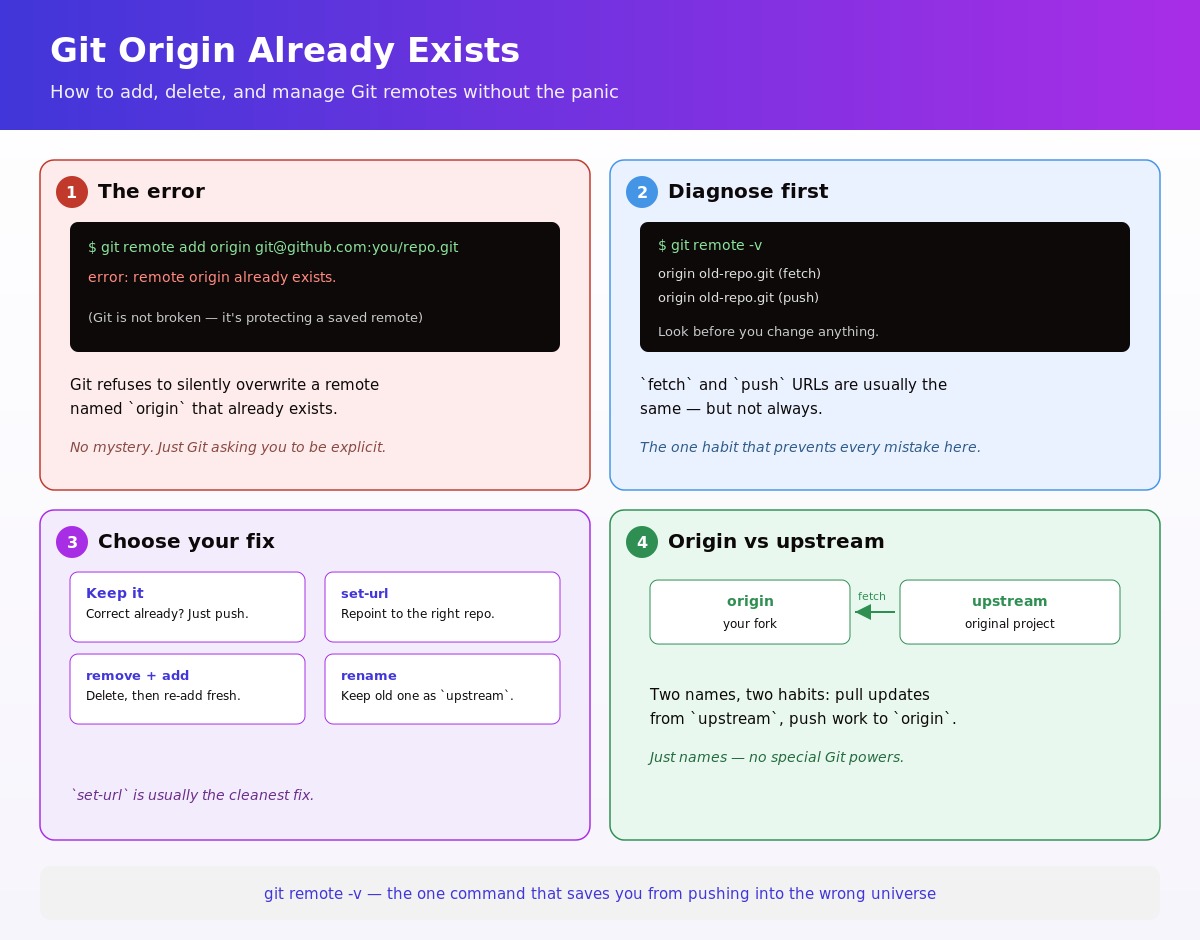
error: remote origin already exists.

At first glance, this feels like Git being difficult for no reason.

But this error is actually useful. It means your local repository already has a remote called origin. Git is not refusing to work. It is telling you:

“I already have a remote with that name. Please decide whether you want to use it, change it, rename it, or remove it.”

Let’s unpack what origin means, why this error happens, and how to manage Git remotes without turning your repository into a small haunted forest.


What is origin in Git?

In Git, a remote is a saved shortcut to another copy of your repository.

Usually, that other copy lives on GitHub, GitLab, Bitbucket, or a private Git server.

The name origin is only a convention. It is not magic. It is simply the default name Git commonly uses for the main remote repository.

For example, this command:

git remote add origin git@github.com:elena/my-project.git

means:

“Git, please remember this remote repository URL and call it origin.”

After that, you can write:

git push origin main

Instead of typing the full GitHub URL every time.

So origin is a nickname.

A very common nickname, yes. But still just a nickname.


Why does “remote origin already exists” happen?

The error happens when you try to add a remote named origin, but your repository already has one.

For example:

git remote add origin git@github.com:your-name/new-repo.git

Git checks its remote list and finds that origin already exists.

So it refuses to overwrite it silently.

That is good behaviour. Imagine if Git quietly replaced your production remote with a test repository URL. Chaos. Coffee everywhere.

You usually see this error when:

  • you cloned the repository from GitHub, so origin was added automatically;
  • you already added an origin earlier;
  • you copied a project folder from somewhere else;
  • you changed GitHub repositories and forgot the old remote was still attached;
  • you are turning a local project into a GitHub repository and repeated the setup command.

Check your current Git remotes

Before changing anything, inspect what Git already knows.

Run:

git remote -v

You might see something like this:

origin  git@github.com:old-name/old-repo.git (fetch)
origin  git@github.com:old-name/old-repo.git (push)

The fetch URL is used when you pull or fetch changes.

The push URL is used when you push your commits.

Most of the time, they are the same.

If the remote is correct, you do not need to add it again.

You can simply push:

git push -u origin main

Or, if your branch is called master:

git push -u origin master

The -u flag sets the upstream branch, so future pushes can usually be shortened to:

git push

Option 1: Keep the existing origin

Sometimes the error is harmless.

You run:

git remote -v

And the URL is already the right one:

origin  git@github.com:your-name/your-repo.git (fetch)
origin  git@github.com:your-name/your-repo.git (push)

In that case, do nothing.

Just push your code:

git push -u origin main

Git was not asking you to fix anything. It was only saying, “This remote already exists.”


Option 2: Change the origin URL

If origin exists but points to the wrong repository, update it.

Use:

git remote set-url origin git@github.com:your-name/new-repo.git

Then check it:

git remote -v

You should now see:

origin  git@github.com:your-name/new-repo.git (fetch)
origin  git@github.com:your-name/new-repo.git (push)

This is usually the best fix for:

error: remote origin already exists.

Especially when you created a new GitHub repository and want your local project to point to it.


Option 3: Remove origin and add it again

You can also delete the old remote and add a new one.

git remote remove origin

Then add the new origin:

git remote add origin git@github.com:your-name/new-repo.git

Check it:

git remote -v

This works perfectly well.

However, I usually prefer set-url when I only want to change the URL. It is more direct and communicates the intention clearly:

git remote set-url origin git@github.com:your-name/new-repo.git

Use remove when you really want to delete the remote entry.

Use set-url when you want to edit it.


Option 4: Rename the existing origin

Sometimes you do not want to delete the old remote.

For example, you might have:

  • the original project repository;
  • your fork;
  • a private backup repository;
  • a deployment repository.

In that case, you can rename the old remote instead.

git remote rename origin upstream

Now your old origin becomes upstream.

Then you can add a new origin:

git remote add origin git@github.com:your-name/your-fork.git

Check the result:

git remote -v

You might see:

origin    git@github.com:your-name/your-fork.git (fetch)
origin    git@github.com:your-name/your-fork.git (push)
upstream  git@github.com:original-owner/original-project.git (fetch)
upstream  git@github.com:original-owner/original-project.git (push)

This is a common open-source workflow.

Your origin points to your fork.

Your upstream points to the original project.

Then you can pull updates from the original project like this:

git fetch upstream

And push your own work to your fork:

git push origin main

Origin vs upstream: what is the difference?

The names origin and upstream are conventions.

They are not special Git powers.

But they are useful conventions.

Usually:

origin   = your main remote repository
upstream = the original repository you forked from

For a personal project, you may only have origin.

For an open-source contribution, you may have both.

Example:

git remote -v

Output:

origin    git@github.com:elena/cool-project.git (fetch)
origin    git@github.com:elena/cool-project.git (push)
upstream  git@github.com:someone-else/cool-project.git (fetch)
upstream  git@github.com:someone-else/cool-project.git (push)

This setup says:

“My copy lives at origin. The original project lives at upstream.”

That is all.

No mystery. Just names.


HTTPS vs SSH remote URLs

GitHub usually offers two common URL styles.

HTTPS:

https://github.com/your-name/your-repo.git

SSH:

git@github.com:your-name/your-repo.git

Both can work.

HTTPS is often easier for beginners because it looks like a normal web URL.

SSH is very convenient once you have SSH keys set up, because you do not need to keep entering credentials.

You can see which one your repository uses with:

git remote -v

You can switch from HTTPS to SSH like this:

git remote set-url origin git@github.com:your-name/your-repo.git

Or from SSH to HTTPS like this:

git remote set-url origin https://github.com/your-name/your-repo.git

The important thing is not which style you choose.

The important thing is that the URL points to the repository you actually intend to use.


Set separate fetch and push URLs

Most projects use the same URL for fetching and pushing.

But Git allows separate URLs.

For example, you might fetch from one repository but push to another:

git remote set-url origin git@github.com:original/project.git
git remote set-url --push origin git@github.com:your-name/project.git

Check with:

git remote -v

You might see:

origin  git@github.com:original/project.git (fetch)
origin  git@github.com:your-name/project.git (push)

This is more advanced, but useful in some workflows.

For everyday work, keep fetch and push URLs the same unless you have a clear reason not to.


Common Git remote commands

Here is the small toolkit worth remembering.

Show all remotes:

git remote -v

Add a remote:

git remote add origin git@github.com:your-name/your-repo.git

Change a remote URL:

git remote set-url origin git@github.com:your-name/new-repo.git

Remove a remote:

git remote remove origin

Rename a remote:

git remote rename origin upstream

Show detailed information about one remote:

git remote show origin

Push and set upstream tracking:

git push -u origin main

Fetch from a remote:

git fetch origin

Pull from a remote branch:

git pull origin main

A safe checklist when Git says “remote origin already exists”

When you see:

error: remote origin already exists.

Do not immediately delete things.

Use this checklist.

First, inspect:

git remote -v

Then ask:

  1. Does origin already point to the correct repository?
  2. If yes, just push.
  3. If no, should I change the URL?
  4. If I need to keep the old remote, should I rename it to upstream?
  5. If the old remote is useless, should I remove it?

Most of the time, the fix is simply:

git remote set-url origin git@github.com:your-name/new-repo.git

Then:

git push -u origin main

Example: fixing the error step by step

Imagine I have a local repository and I want to connect it to a new GitHub repo.

I run:

git remote add origin git@github.com:elena/git-origin-guide.git

Git replies:

error: remote origin already exists.

So I check:

git remote -v

Output:

origin  git@github.com:elena/old-project.git (fetch)
origin  git@github.com:elena/old-project.git (push)

That is not the repository I want.

So I update it:

git remote set-url origin git@github.com:elena/git-origin-guide.git

Then I check again:

git remote -v

Output:

origin  git@github.com:elena/git-origin-guide.git (fetch)
origin  git@github.com:elena/git-origin-guide.git (push)

Now I push:

git push -u origin main

Done.

The error was not a disaster. It was just Git asking me to be explicit.


What if my branch is not called main?

Older repositories often use master.

Newer repositories often use main.

Check your current branch:

git branch

The branch with the * is your current branch:

* main

Or:

* master

Push the branch you actually have.

For main:

git push -u origin main

For master:

git push -u origin master

You can also ask Git directly for the current branch name:

git branch --show-current

Then push using that name.


A simple mental model

Think of your Git repository like a notebook on your desk.

A remote is the address of another copy of that notebook.

origin is the label on the address card.

When you run:

git remote add origin ...

You are saying:

“Create a new address card called origin.”

But if that card already exists, Git refuses.

It does not know whether you want to replace it, rename it, or keep it.

That is why this command fails:

git remote add origin ...

And this command works when you want to change the address:

git remote set-url origin ...

Small difference. Big relief.


Final thoughts

The error:

error: remote origin already exists.

sounds more dramatic than it is.

It usually means one thing:

Your repository already has a remote named origin.

To fix it, inspect first:

git remote -v

Then choose the right action:

  • keep it if it is correct;
  • update it with git remote set-url origin ...;
  • remove it with git remote remove origin;
  • rename it with git remote rename origin upstream.

Once you understand that origin is only a remote name, Git becomes much less mysterious.

And, as usual with Git, the safest habit is simple:

Look before you change.

git remote -v

That one command can save you from pushing your code into the wrong universe.

desktop bg dark

About Elena

Elena, a PhD in Computer Science, simplifies AI concepts and helps you use machine learning.

Citation
Elena Daehnhardt. (2026) 'Git Origin Already Exists: What It Means and How to Fix It', daehnhardt.com, 20 June 2026. Available at: https://daehnhardt.com/blog/2026/06/20/git-origin-already-exists-manage-remotes/
All Posts