Elena' s AI Blog

Docker Permissions Without Panic: Why I Ran chown Inside My Container

26 Jun 2026 (updated: 26 Jun 2026) / 35 minutes to read

Elena Daehnhardt


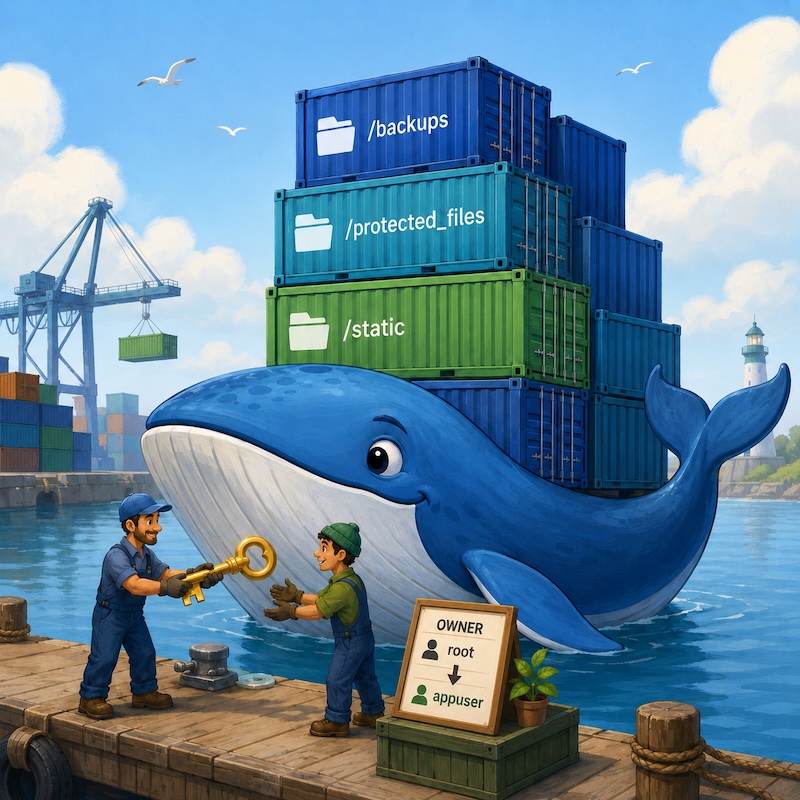
Midjourney: a friendly blue whale carrying neatly labelled cargo containers, one worker handing a key to another at the dock
I am still working on this post, which is mostly complete. Thanks for your visit!


TL;DR:
  • - `Permission denied` inside a container is almost always an ownership mismatch: root created the folders, but the app runs as `appuser`.
  • - Linux matches permissions on the numeric UID/GID, not the name — so a bind-mounted folder owned by host UID 501 will not magically belong to the container's `appuser`.
  • - Fix it with `chown -R appuser:appuser` on the specific folders, never `chmod 777`, which simply switches the locks off.
  • - The permanent cure lives in your Docker setup: `COPY --chown`, a `RUN chown` for built folders, and an entrypoint that fixes volume ownership before dropping privileges with `gosu`.

Introduction

Sometimes Docker does not fail loudly.

It does not say:

Hello Elena, your container is fine, but your app cannot write to the folder because the owner is wrong.

No. Docker prefers mystery.

You run the app. Everything looks healthy. The container is up. Nginx is serving. Flask is alive. Then suddenly uploads fail, backups do not appear, static files refuse to update, or Python throws one of those wonderfully unhelpful messages:

Permission denied

In my case, the fix was this command:

docker compose exec -u root web chown -R appuser:appuser /backups /app/protected_files /app/app/static

At first glance, it looks like a scary Linux spell.

But it is actually a very practical Docker permissions repair.

Let’s unpack it.


The short version

This command changes the owner of three important folders inside the running web container:

/backups
/app/protected_files
/app/app/static

It makes appuser the owner of those folders.

That matters because the web application itself runs as appuser, not as root.

So after this command, the app can write files where it needs to write them:

  • backups can be saved;
  • protected files can be created or updated;
  • static files can be written when the app needs to generate or collect them.

The important part is this:

appuser:appuser

That means:

owner = appuser
group = appuser

Instead of giving everybody permission to write everywhere, we give the right user ownership of the right folders.

That is much cleaner than chmod 777.

Docker folder ownership mismatch and repair A folder created by root blocks writes from a Flask app running as appuser, returning Permission denied. Running chown as root briefly makes appuser the owner, after which writes succeed. /backups owner: root write Flask app runs as appuser Permission denied chown -R appuser:appuser (briefly as root) /backups owner: appuser write Flask app writes backup saved
Root can repair ownership, but the application should keep running as appuser.

The command

Here is the full command again:

docker compose exec -u root web chown -R appuser:appuser /backups /app/protected_files /app/app/static

Now let’s split it into pieces.


docker compose exec

This means:

Run a command inside an already running Docker Compose service.

Not inside a new temporary container.

Not during image build.

Inside the container that is already running as part of the Compose application.

So if your docker-compose.yml has a service called web, this part targets that service:

docker compose exec web ...

It is like opening a small maintenance door into the running web container.


-u root

This part means:

-u root

Run this one command as root.

That does not mean the whole application should run as root forever.

It only means we temporarily need root permissions to fix file ownership.

This is an important difference.

A good production container often runs the application as a non-root user. That is safer. If the application is compromised, the attacker gets fewer privileges inside the container.

But changing ownership of files is an administrative task.

A normal app user usually cannot do this:

chown -R appuser:appuser ...

So we briefly use root for the repair.

It is worth being precise about what exec does here. It does not pause, restart, or alter the running application. It spawns a separate process inside the same container — alongside the Flask app, in the same namespaces — and that one process runs as root only until the chown finishes and exits. The application never stops, and it never stops being appuser. We are sending a root-privileged helper in through a side door, not handing root to the app.

That is the point: root fixes the house; appuser lives in it.


web

This is the service name.

In Docker Compose, you usually define services like this:

services:
  web:
    build: .
    ...

So this command says:

docker compose exec -u root web ...

Meaning:

Enter the running container for the web service, and run the following command as root.

If your service is called something else, such as app, backend, or flask, you would use that name instead.

For example:

docker compose exec -u root app chown -R appuser:appuser /backups

chown

chown means change owner.

Linux files and directories have owners.

You can see them with:

ls -ld /backups /app/protected_files /app/app/static

The output might look something like this:

drwxr-xr-x 7 root root  224 Jun 23 10:09 /app/app/static
drwxr-xr-x 8 root root  256 Jun 24 11:46 /app/protected_files
drwxr-xr-x 2 root root 4096 Jun 26 03:24 /backups

The important part is:

root root

That means the folder is owned by the root user and the root group.

If your Flask app runs as appuser, it may not be allowed to write there.

After running chown, the folder should look more like this:

drwxr-xr-x 2 appuser appuser 4096 Jun 26 10:15 /backups

Now the application user owns the folder.


-R

This means recursive.

So this command:

chown -R appuser:appuser /backups

does not only change /backups.

It also changes everything inside it.

For example:

/backups
/backups/db
/backups/db/latest.sql
/backups/uploads
/backups/uploads/archive.zip

That is useful when the directory already contains files created by root.

But it is also the dangerous part.

Recursive ownership changes should be used carefully.

This is safe:

chown -R appuser:appuser /backups /app/protected_files /app/app/static

This is not safe:

chown -R appuser:appuser /

That would try to change ownership across the whole container filesystem.

Tiny command. Large chaos.


appuser:appuser

This is the new owner and group.

The format is:

user:group

So:

appuser:appuser

means:

user  = appuser
group = appuser

Many Docker images create a dedicated non-root user for the application. In this case, that user is called appuser.

You can check whether the user exists inside the container with:

docker compose exec web id appuser

You might see something like:

uid=1000(appuser) gid=1000(appuser) groups=1000(appuser)

The exact numbers may differ.

The name matters inside the container.

The numeric UID and GID matter especially when bind mounts touch the host filesystem.


Names are a convenience; numbers are the truth

Here is the part that trips up almost everyone the first time. Linux does not actually enforce permissions using the name appuser. It uses a number — the UID (user ID) and GID (group ID). The name is just a friendly label stored in /etc/passwd, looked up for display.

When you run id appuser inside the container, you might see:

uid=1000(appuser) gid=1000(appuser) groups=1000(appuser)

So appuser is really UID 1000. The kernel checks 1000, not the six letters.

This matters because two different containers — or a container and the host — can disagree about what UID 1000 is called. On your laptop, UID 1000 might be you. On a colleague’s machine, UID 501. Inside an Alpine image, 1000 might not exist at all. The name appuser is local to whichever /etc/passwd you happen to be reading.

For files that live entirely inside the container’s own filesystem, this is invisible — the image defines appuser, owns the folders, and everything agrees. The trouble starts the moment a folder crosses the boundary between the host and the container.

Host and container disagree on what a UID is called The same bind-mounted folder is owned by numeric UID 501. On the host that number is the user Elena; inside the container the app runs as appuser, UID 1000. The kernel compares 1000 against 501, they differ, so the write is denied. HOST Elena = UID 501 /backups owned by 501 one bind-mounted folder CONTAINER appuser = UID 1000 owns writes Linux compares numbers, not names: 1000 ≠ 501 → Permission denied
Same folder, two identity maps. The kernel checks the UID, so the friendly name appuser never enters into it.

Where the wrong owner actually comes from

Not all mounts behave the same way, and the difference is the single most common cause of this whole headache.

A named volume (managed by Docker, e.g. backups:/backups) is different again. The first time Docker creates a new, empty named volume, it can initialise it from whatever already exists at that path in the image, ownership included. So a fresh named volume usually inherits the appuser ownership you baked into the image — pleasant and predictable. After that first creation, though, the volume keeps its own state: rebuilding the image does not reset it. This is gold for real-world debugging — if a named volume “remembers” the wrong owner long after you fixed the Dockerfile, it is because the volume was created before the fix and was never re-initialised.

A bind mount (a host path, e.g. ./backups:/backups) is different. Docker does not copy or adjust anything. The directory appears inside the container with exactly the numeric ownership it has on the host. If ./backups on your host is owned by host-UID 501, then inside the container /backups is owned by 501 — whatever that number happens to be called in there.

So you can get a mismatch like this:

# On the host
$ ls -ld backups
drwxr-xr-x 2 elena staff 64 Jun 26 10:15 backups        # host UID 501

# Inside the container, same folder, viewed through the bind mount
$ docker compose exec web ls -ld /backups
drwxr-xr-x 2 501 dialout 64 Jun 26 10:15 /backups        # no name for 501 here

The container has never heard of UID 501, so it just prints the bare number. Meanwhile your app runs as appuser (UID 1000), looks at a folder owned by 501, and is politely told Permission denied. Nothing is broken — the two sides simply never agreed on who owns the folder.

This is why the same docker-compose.yml can work on one machine and fail on another: the host UID changes, but the container’s appuser does not.

One more trap if you develop on a Mac: Docker Desktop’s file-sharing layer (VirtioFS or gRPC FUSE) quietly remaps UIDs on bind mounts, so a folder owned by your macOS user often shows up inside the container as already owned by the container’s user. Everything looks fine locally — and then the exact same setup hits Permission denied the first time it runs on a native Linux staging or production host, where no such remapping happens.


Why these folders?

The command changes ownership of three paths:

/backups
/app/protected_files
/app/app/static

Each folder has a job.


/backups

This folder stores backup files.

For example, your app or a scheduled worker might create:

/backups/database_2026-06-26.sql
/backups/uploads_2026-06-26.tar.gz

If /backups is owned by root, the app may fail when it tries to create a backup.

That is bad because backups are not decorative.

Backups are the seatbelt.

You do not want to discover the seatbelt was fake after the crash.


/app/protected_files

This sounds like a folder for private or restricted files.

For example:

/app/protected_files/user_uploads
/app/protected_files/private_exports
/app/protected_files/generated_reports

These are probably files that should not be served directly by Nginx as public static files.

The Flask app may need to create, read, move, or delete them.

So the folder needs to be writable by the application user.

Not by everyone.

Not by random processes.

By the app user.

That is why ownership matters.


/app/app/static

This folder contains static files.

In many Python web apps, static files include:

CSS
JavaScript
images
generated charts
compiled assets
uploaded public assets

Usually, static files are copied into the image during build. In that case, the app may only need to read them.

But some projects generate static files at runtime.

For example:

  • generated charts;
  • generated thumbnails;
  • exported images;
  • collected assets;
  • user-facing files created by the app.

If the app needs to write there, appuser needs permission.


Why does this problem happen?

This usually happens because files can be created by different users at different times. During image build, files may be copied as root. During container startup, a script may create folders as root. A named volume may inherit image ownership, while a bind mount brings in host-side UID/GID ownership.

Then the app starts as appuser, and suddenly it cannot write to the folders it needs. So the container has a split personality:

root created the folders
appuser needs to use the folders

That is when Permission denied appears.

The fix is not to make the app root. The fix is to give the app user ownership of the specific folders it needs.


Why not just run the whole app as root?

Because it is unnecessary risk.

A web app should not need full root powers to serve pages, write backups, or save uploads.

Running as a non-root user gives you a smaller blast radius.

If something goes wrong, the process has fewer permissions inside the container.

This does not make the app magically secure.

But it removes one unnecessary danger.

The better pattern is:

Use root for setup tasks.
Use appuser for the actual application.

That is exactly what this command does.

It borrows root briefly to fix ownership, then lets the app run as the safer user.


Why not use chmod 777?

Because chmod 777 is the “leave the front door open” solution.

It means:

owner can read/write/execute
group can read/write/execute
everyone can read/write/execute

Sometimes people use it because it makes the error disappear.

But it also makes the permission model meaningless.

This:

chmod -R 777 /app/protected_files

says:

I do not know who needs access, so everybody gets access.

This:

chown -R appuser:appuser /app/protected_files

says:

The application user owns this folder because the application is responsible for it.

That is a much better story.


What does this command give us?

It gives us four practical wins.

First, it fixes write errors.

The app can create backups, save protected files, and write generated static assets.

Second, it keeps the app running as a non-root user.

We do not need to weaken the container just because one folder has the wrong owner.

Third, it makes file ownership intentional.

The folder belongs to the user that actually uses it.

Fourth, it avoids the messy habit of using chmod 777.

Permissions become boring again.

Boring permissions are good permissions.


A quick diagnostic checklist

When Permission denied shows up, work through this before changing anything. Each row maps a symptom to the command that confirms it and what the result is telling you.

What you suspect Command What the answer means
Who owns the folder? docker compose exec web ls -ld /backups If you see root root or a bare number like 501, the app user does not own it.
Which user is the app? docker compose exec web id Shows the UID the process actually runs as — usually 1000(appuser).
Does that user exist? docker compose exec web id appuser If it errors, the name is wrong for this image; use the number instead.
Is it a bind mount? docker inspect -f '{{json .Mounts}}' <container> "Type": "bind" means host ownership applies; "volume" means Docker manages it.
Can the user write right now? docker compose exec -u appuser web touch /backups/test A clean exit means permissions are fine; Permission denied confirms the mismatch.

If the last check fails, you have found your culprit, and the chown repair below is the immediate fix.


How to check before running it

Before changing ownership, inspect the folders:

docker compose exec web ls -ld /backups /app/protected_files /app/app/static

You may see something like:

drwxr-xr-x 2 root root 4096 Jun 26 10:15 /backups
drwxr-xr-x 2 root root 4096 Jun 26 10:15 /app/protected_files
drwxr-xr-x 2 root root 4096 Jun 26 10:15 /app/app/static

That tells you root owns them.

Then check the app user:

docker compose exec web id appuser

If the user exists, run the repair:

docker compose exec -u root web chown -R appuser:appuser /backups /app/protected_files /app/app/static

Then check again:

docker compose exec web ls -ld /backups /app/protected_files /app/app/static

Now you want to see:

appuser appuser

in the owner and group columns.


A safer version for scripts

If you want this in a setup script, make it explicit and readable:

docker compose exec -u root web sh -c '
  chown -R appuser:appuser \
    /backups \
    /app/protected_files \
    /app/app/static
'

This is the same idea, but easier to read in documentation.


Should this command be permanent?

Ideally, no.

This command is useful as a repair.

But if you need it every time you restart or redeploy, the real fix should live in your Docker setup.

For files copied into the image, you can set ownership during build.

For example:

COPY --chown=appuser:appuser . /app

Or you can create and own the folders in the Dockerfile:

RUN mkdir -p /backups /app/protected_files /app/app/static \
    && chown -R appuser:appuser /backups /app/protected_files /app/app/static

USER appuser

That way, the image already has the right ownership before the app starts.

For mounted volumes, you may still need startup-time handling, because the mounted directory can hide what was built into the image.

This is one of the little Docker surprises: what you carefully prepared during build can disappear behind a mounted volume at runtime.

A small but important ordering rule: anything after the USER appuser line in a Dockerfile runs as appuser. So your chown, your mkdir, and any apt-get install must come before you switch users, or they will themselves hit Permission denied. Set ownership first, drop privileges last.

The COPY --chown flag is the tidy way to avoid a second chown for files baked into the image:

# Without --chown, these files land as root and need fixing later.
COPY . /app
RUN chown -R appuser:appuser /app

# With --chown, they arrive owned correctly in a single step.
COPY --chown=appuser:appuser . /app

The Proper Fix: Own It at Build, Repair Volumes at Runtime

The chown command we started with is a fine repair. But typing it after every deploy is a chore, and chores get forgotten right up until the night they matter. The durable solution is two-layered: bake correct ownership into the image, and fix mounted-volume ownership once at startup, before the app drops to its non-root user.

Build-time ownership plus runtime volume repair The Dockerfile fixes ownership of files baked into the image. The entrypoint runs as root at startup to fix mounted-volume ownership, then uses gosu to drop privileges so the application runs as appuser for its entire life. BUILD TIME EVERY START (as root) PROCESS LIFE Dockerfile COPY --chown RUN chown image files → appuser Entrypoint runs as root chown mounts fixes bind mounts Application runs as appuser never root gosu Set ownership first, drop privileges last.
The Dockerfile fixes image-owned files; the entrypoint fixes mounted folders; the app then runs the whole time as appuser.

Here is a complete, working trio you can drop into a Flask project.

The Dockerfile

FROM python:3.12-slim

# 1. Install gosu — a tiny tool that runs a command as another user.
#    (It is the lightweight, sudo-free way to step DOWN from root.)
RUN apt-get update \
    && apt-get install -y --no-install-recommends gosu \
    && rm -rf /var/lib/apt/lists/*

# 2. Create a dedicated non-root user with a fixed, predictable UID/GID.
#    Pinning the numbers makes host/container matching far easier later.
RUN groupadd --gid 1000 appuser \
    && useradd --uid 1000 --gid 1000 --create-home appuser

WORKDIR /app

# 3. Install dependencies as root (needs write access to site-packages).
COPY requirements.txt .
RUN pip install --no-cache-dir -r requirements.txt

# 4. Copy the application in, already owned by appuser.
COPY --chown=appuser:appuser . /app

# 5. Create the folders the app writes to and give them to appuser
#    NOW, while we are still root.
RUN mkdir -p /backups /app/protected_files /app/app/static \
    && chown -R appuser:appuser /backups /app/protected_files /app/app/static

# 6. The entrypoint runs as root on purpose, fixes volume ownership,
#    then drops to appuser to launch the app. It is executable
#    infrastructure, not app data, so leave it owned by root.
COPY docker-entrypoint.sh /usr/local/bin/docker-entrypoint.sh
RUN chmod +x /usr/local/bin/docker-entrypoint.sh

ENTRYPOINT ["docker-entrypoint.sh"]
CMD ["gunicorn", "--bind", "0.0.0.0:8000", "app:app"]

Notice the entrypoint deliberately does not declare USER appuser. We need to enter as root so we can repair mounted volumes; the entrypoint then hands control to appuser itself. If we switched users in the Dockerfile, we would lose the one privilege that makes the repair possible.

The entrypoint script

This is where the runtime magic happens. It re-owns the writable folders — which is the part the Dockerfile cannot guarantee, because a bind mount can hide the built-in ownership — and then uses gosu to exec the real command as appuser.

#!/bin/sh
# docker-entrypoint.sh
# Runs as root, fixes ownership of writable paths, then drops to appuser.
set -e

# Folders the application must be able to write to. A bind mount may have
# arrived here owned by some host UID, so we realign it every start.
WRITABLE_DIRS="/backups /app/protected_files /app/app/static"

# Only attempt the chown when we are actually root. If the container is
# already started as a non-root user, skip silently rather than erroring.
if [ "$(id -u)" = "0" ]; then
    echo "entrypoint: aligning ownership of writable directories..."
    for dir in $WRITABLE_DIRS; do
        mkdir -p "$dir"
        chown -R appuser:appuser "$dir"
    done

    # Hand over to appuser for the actual process. exec replaces PID 1,
    # so signals (SIGTERM on 'docker stop') reach the app cleanly.
    echo "entrypoint: dropping privileges, starting as appuser..."
    exec gosu appuser "$@"
fi

# Already non-root (e.g. 'docker run --user'): just run the command.
exec "$@"

One practical caution: for small application folders this recursive chown is instant. On a very large mounted volume — think gigabytes of user uploads — it can noticeably slow every startup, because it touches every file. In that case, prefer creating the host folder with the matching UID/GID up front, or fixing only the top-level directory when that is enough.

Two details that are easy to get wrong. First, exec matters: without it, gosu would launch the app as a child of the shell, and the shell would stay PID 1 — meaning docker stop sends SIGTERM to the shell, not your app, and you wait the full ten seconds for a SIGKILL. With exec, the app becomes PID 1 and shuts down gracefully. Second, the id -u guard keeps the script working even if someone overrides the user with docker run --user 1000, in which case there is no privilege to drop and the chown would only fail.

The docker-compose.yml

services:
  web:
    build: .
    ports:
      - "8000:8000"
    volumes:
      # Named volume: Docker manages it and preserves the image's
      # appuser ownership on first use. Predictable.
      - backups:/backups
      # Bind mount: handy in development, but arrives with HOST ownership.
      # The entrypoint chown is what keeps this one working.
      - ./protected_files:/app/protected_files
    restart: unless-stopped

volumes:
  backups:

With this in place, the workflow becomes boring in the best way. Build the image, run docker compose up, and the entrypoint quietly fixes ownership on every start — named volume or bind mount, your laptop or a colleague’s. No post-deploy chown to remember, and the app still spends its entire life as a non-root user.


The mental model

Here is the simplest way to think about it:

Docker image build:
  root often creates files

Docker runtime:
  appuser runs the application

Mounted folders:
  may arrive with different ownership

Application:
  needs to write to specific folders

chown command:
  makes those folders belong to appuser

That is all.

The command is not a hack.

It is a permissions alignment.

The app runs as appuser, so the app-owned folders should also belong to appuser.


Final version of the command

docker compose exec -u root web chown -R appuser:appuser /backups /app/protected_files /app/app/static

Read it as:

In the running web service, temporarily act as root and recursively make appuser the owner of the backup, protected files, and static folders.

That is much less mysterious.

And next time Docker says Permission denied, we know where to look first.

Not at the framework.

Not at Nginx.

Not at the moon phase.

At ownership.

desktop bg dark

About Elena

Elena, a PhD in Computer Science, simplifies AI concepts and helps you use machine learning.


Citation
Elena Daehnhardt. (2026) 'Docker Permissions Without Panic: Why I Ran chown Inside My Container', daehnhardt.com, 26 June 2026. Available at: https://daehnhardt.com/blog/2026/06/26/docker-permissions-without-panic/
All Posts