Elena' s AI Blog

Git Checkout for overwriting directories from different branches

22 Sep 2024 (updated: 03 Jul 2026) / 7 minutes to read

Elena Daehnhardt


Git checkout to overwrite a directory contents


TL;DR:
  • How to overwrite a directory in one Git branch with contents from another branch using git checkout command, with cautionary notes about file replacement.

Previous: Part 23 — Git Remotes

Next: Part 25 — GitHub Gists

How to Overwrite a Directory from Another Git Branch with git checkout

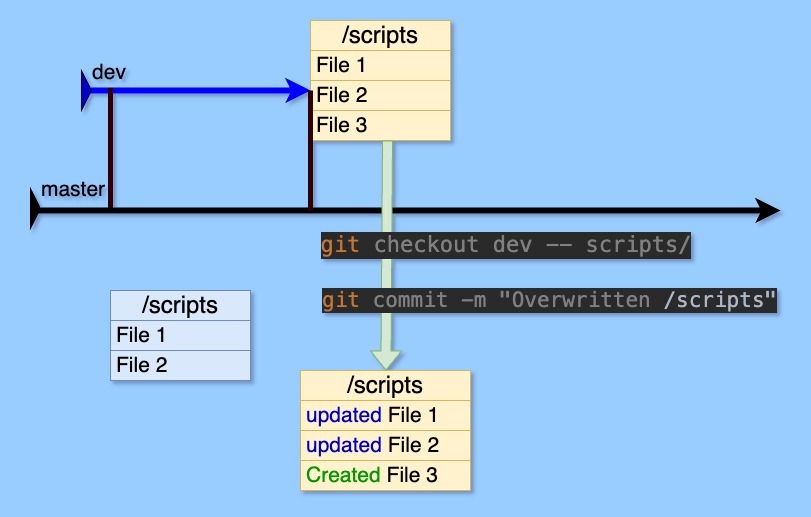
To overwrite one branch’s directory with the contents of the same directory from another branch, run git checkout <source-branch> -- <path>/ and commit the result. For example, git checkout dev -- scripts/ replaces the scripts/ directory on your current branch with the version from dev.

Recently, I had to overwrite the “scripts” directory in my master branch with the files stored in the “scripts” directory of the “dev” branch. Here, I share the simplest way to overwrite the required directory completely with the respective directory contents from another branch.

Use this git checkout command with caution, since it completely rewrites your files in the destination branch.

What is git checkout?

git checkout is a Git command that updates the working directory to match a specified branch, commit, or file, letting you navigate your project’s history and work on different versions of code.

We can use the git checkout command for (see git-checkout documentation for more):

  1. Switching Branches:

    • The most common use of git checkout is to navigate between the different branches you’ve created in your repository.
    • When you check out a branch, Git updates the files in your working directory to match the version stored in that branch. It also tells Git to record all new commits on that branch.
  2. Viewing Old Commits (Detached HEAD):

    • You can also use git checkout to view the state of your project at a specific commit in the past.
    • This puts you in a “detached HEAD” state, meaning you’re not on any branch, and any new commits you make won’t be associated with a branch unless you create a new one.
  3. Restoring Files:

    • git checkout can be used to discard changes in your working directory and revert a file to its state in the index (staging area) or a specific commit.

Please note that git checkout primarily affects the files in your working directory, making them match the version you’re checking out. This command also updates the HEAD pointer, which indicates the current branch or commit you’re working on.

Moreover, if you have uncommitted changes in your working directory when you check out a different branch or commit, Git will try to merge those changes. If there are conflicts, you’ll need to resolve them before completing the checkout.

For restoring files, Git also provides the git restore command, which offers more granular control over which parts of your project to restore. You can read about git restore in my post Restoring deleted files in Git.

Overwrite a Directory from Another Branch: Step-by-Step git checkout Commands

Here is how to overwrite only the /scripts directory from the dev branch onto the master branch in Git:

  1. Checkout the Master Branch:

    git checkout master
    
  2. Replace the “/scripts” directory with the one from ‘dev’

    git checkout dev -- scripts/
    
  3. Commit the Changes:

    git commit -m "Overwritten /scripts directory in master with dev content"
    

You will also see that files which were not yet present in the destination directory are created:

[master abe8711e] Overwritten /scripts directory in master with dev content
 3 files changed, 11 insertions(+), 2 deletions(-)
 create mode 100744 scripts/publish/how_to.md
  1. (Optional) Push the Changes:

    git push origin master 
    

error: pathspec ‘dev’ did not match any file(s) known to git

Cause: the source branch name in git checkout dev -- scripts/ does not exist locally, usually because it only exists on the remote.

Fix: fetch the branch first, then retry:

git fetch origin dev
git checkout origin/dev -- scripts/

Conclusion: git checkout Overwrites a Directory Path in One Command

git checkout is a fundamental Git command that lets you navigate your project’s history and work on different code versions. The git checkout <source-branch> -- <path>/ recipe replaces the contents of a directory with the version from another branch in a single command. It is easy, but use it with caution, because it discards uncommitted changes at that path.

Git Checkout Overwrite FAQ

How do I overwrite a single directory from another branch without merging the whole branch?

Use git checkout <source-branch> -- <path>/. For example, git checkout dev -- scripts/ copies only the scripts/ directory from dev into your current branch, without merging any other files. Commit the result to record the change.

Does git checkout overwrite uncommitted changes in the working directory?

Yes. git checkout <branch> -- <path>/ replaces the files at that path with the source-branch versions, discarding any uncommitted local edits there. Commit or stash your work first if you need to keep it.

Why does git checkout create new files in the target directory?

git checkout <source> -- <path>/ mirrors the source directory exactly, so files present in the source but missing in the destination are created. The commit output reports them, for example create mode 100744 scripts/publish/how_to.md.

What is the difference between git checkout and git restore for restoring files?

git checkout moves HEAD, switches branches, and can overwrite paths from another branch. git restore is the newer, narrower command dedicated to restoring file contents from the index or a commit, giving more granular control without touching HEAD.

References

  1. Restoring deleted files in Git

  2. git-checkout

Did you like this post? Please let me know if you have any comments or suggestions.

Git posts that might be interesting for you


desktop bg dark

About Elena

Elena, a PhD in Computer Science, simplifies AI concepts and helps you use machine learning.

Citation
Elena Daehnhardt. (2024) 'Git Checkout for overwriting directories from different branches', daehnhardt.com, 22 September 2024. Available at: https://daehnhardt.com/blog/2024/09/22/edaehn-git-overwrite-directory-with-contents-from-a-branch/
All Posts